Nintendo Joy-Cons for the EMDR App
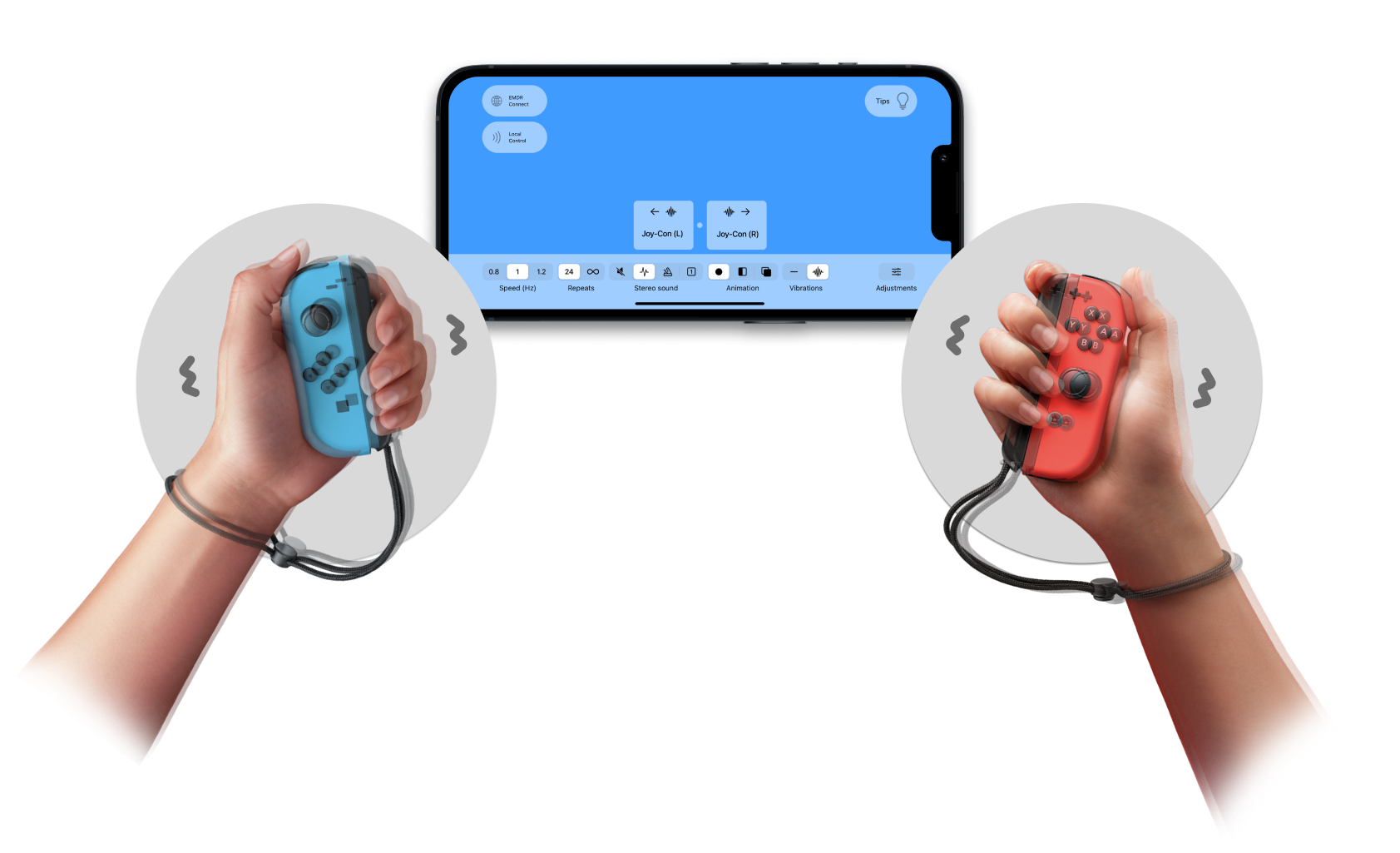
Alternating pulses, wireless, plus physical controls.
Why Joy-Cons Are Our First Choice
- Smooth alternating pulses: Hold one Joy-Con in each hand. The EMDR app alternates vibrations between them at the speed and intensity you choose. HD Rumble makes each pulse feel smooth.
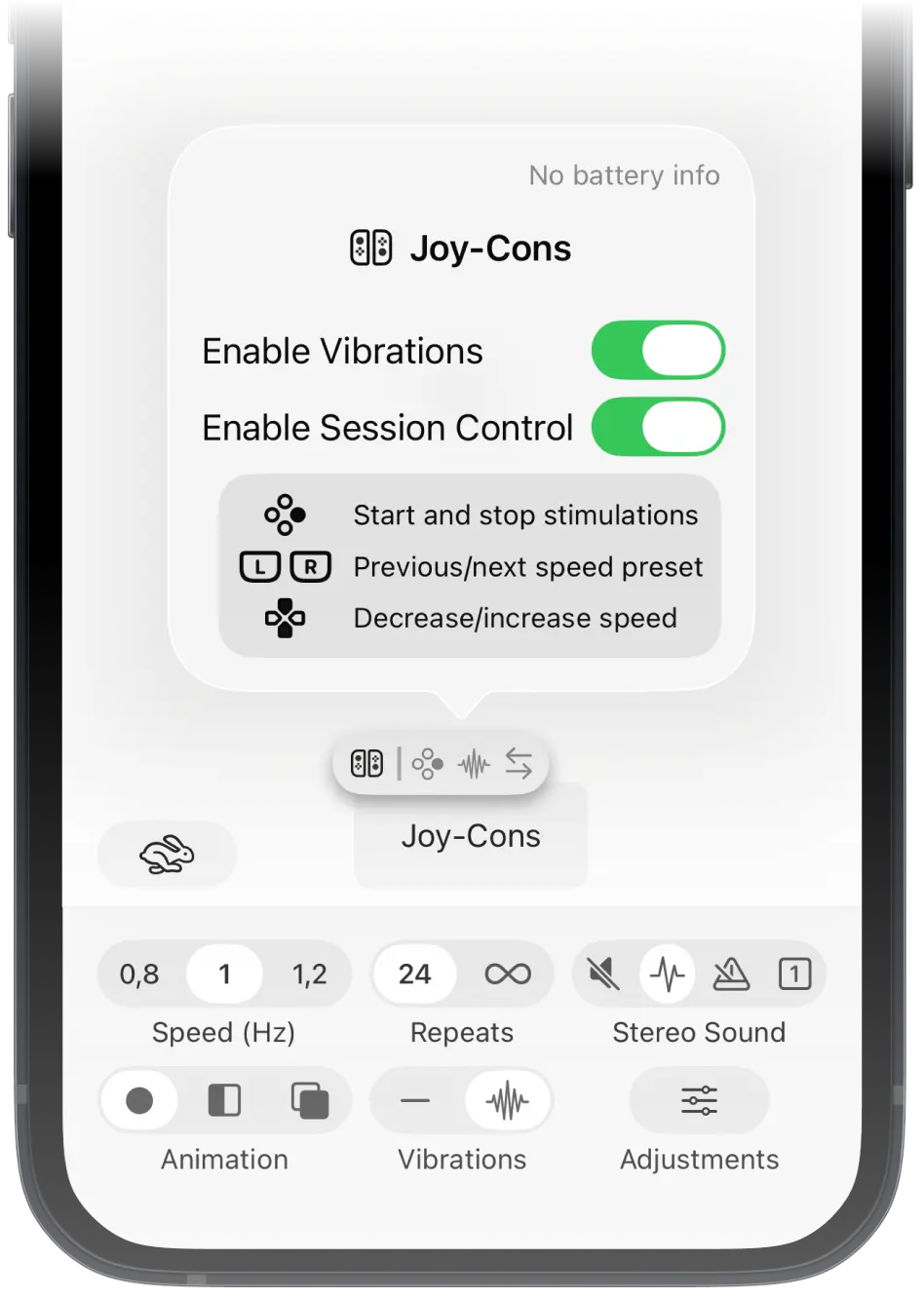
- Control without the screen: Use the buttons to start or stop stimulation and adjust the speed without touching the screen. No separate control box is needed during a session.
- Durable over time: In our experience, Joy-Cons have outlasted the dedicated EMDR tappers we previously owned.
Compatibility
- Nintendo Joy-Con controllers are supported on iPhone, Android, iPad, Mac, Apple Vision, and the EMDR Connect website.
- Nintendo Joy-Con 2 controllers for Nintendo Switch 2 (2025) are supported on iPhone, iPad, Android, Apple Watch and Windows.
Setting Up Nintendo Joy-Cons
-
Step 1: Activate Pairing Mode
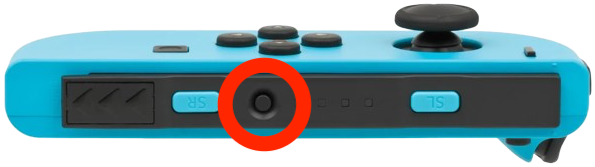
Hold the SYNC button on the rail (pictured) until the player lights flash.
-
Step 2: Connect Your Joy-Cons (First-Generation)
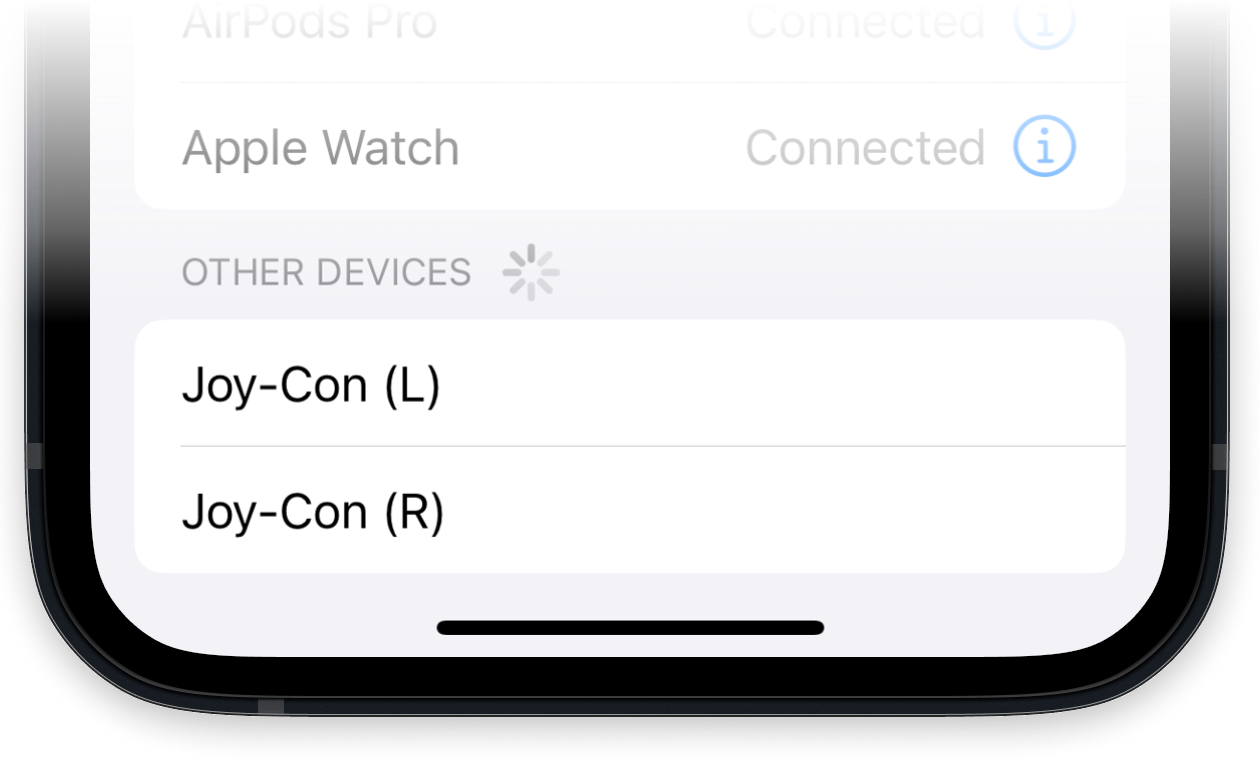
Open Bluetooth settings on your device and pair both controllers.
Open the EMDR app and tap Joy-Cons above the control panel to set up vibration and button controls.
Note: if both Joy-Cons vibrate at the same time, press and hold their Home and Capture buttons (circled) simultaneously for 4 seconds, to switch to an alternating mode.
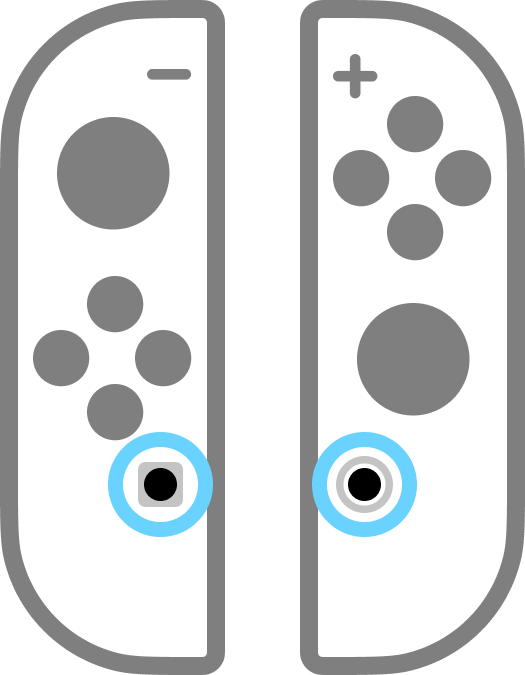
After the initial setup, press A + B on the right Joy-Con, or Down + Right on the left Joy-Con to reconnect or wake them from standby.
Step 2: Connect Your Joy-Cons (Second-Generation)
In the EMDR app, simply open Devices and tap Connect next to Joy-Con 2. To reconnect them later, use the same SYNC button + Connect button flow.
Using First-Generation Joy-Cons with the EMDR Connect Web Page
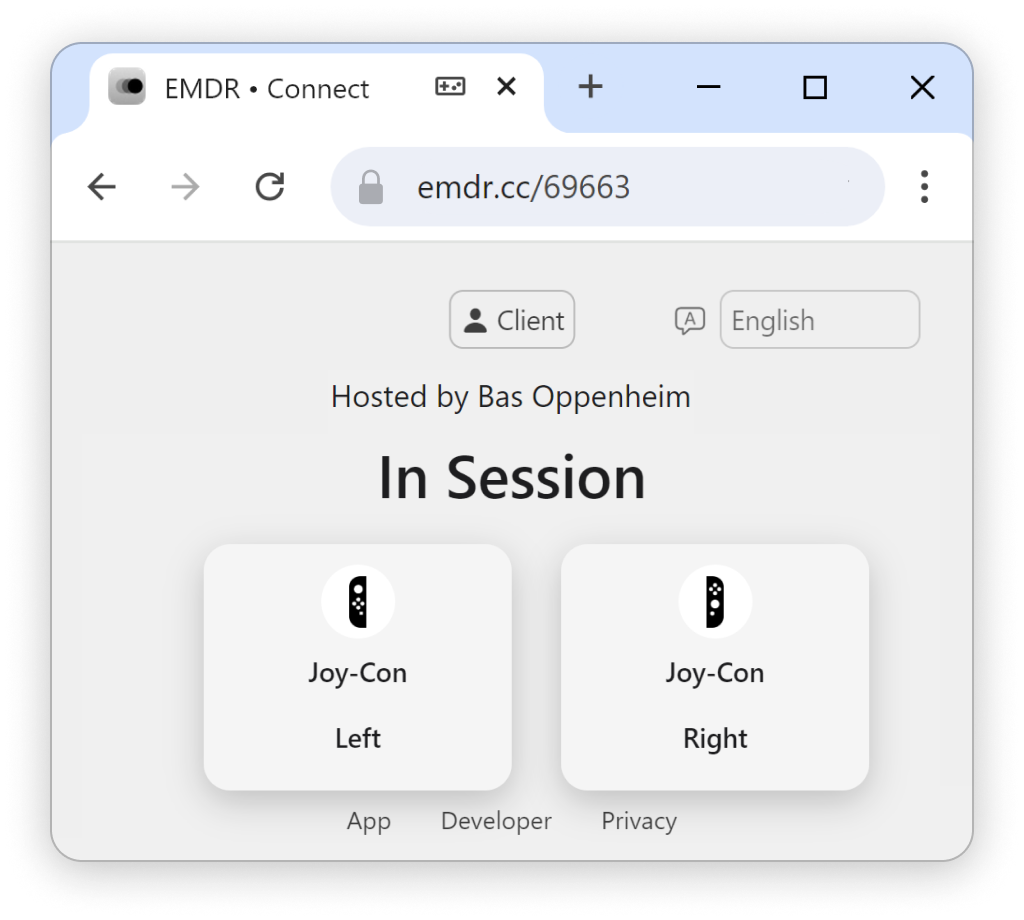
First-generation Joy-Cons provide vibration through the EMDR Connect web app on Windows, macOS, and Linux. Use Google Chrome or Microsoft Edge.
- On the participant’s computer, pair both Joy-Cons in Bluetooth settings. Then open the EMDR Connect web app, select Add Joy-Cons, and approve the connection.
- The room host can then turn on Vibrations in the EMDR app. Mobile browsers do not currently support Joy-Con vibration.
Ready to Use Joy-Cons?
We're here for you.
We're here to support you if you'd like additional help.